Moonflix is a feature-rich online multimedia streaming app offering thousands of movies, series, podcasts, and anime content that you can stream in higher resolution without ad interruption for free. The article here is a guide to using Moonflix on iOS or iPhone for streaming cinema properly. There is a wide range of entertainment content in this app, but you need to dig deep into its content library to find the jewel-like content.
Why Use Moonflix on iOS?
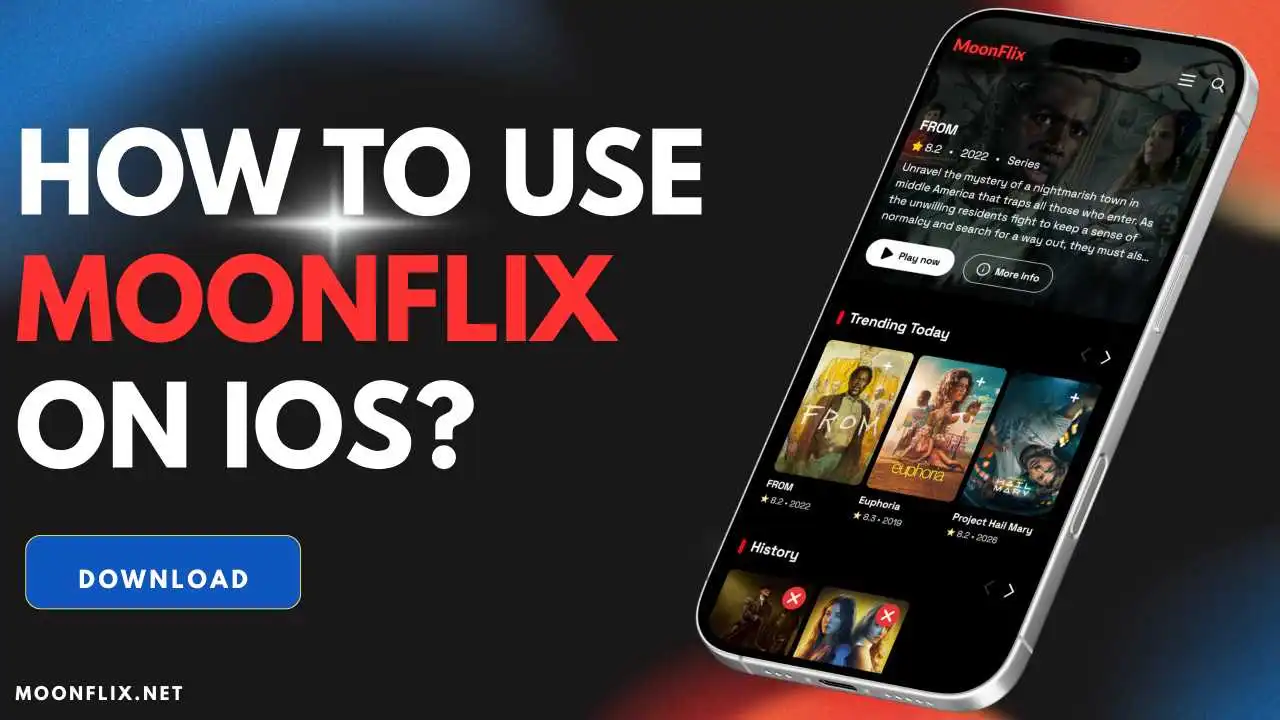
The iOS version of Moonflix is designed to make accessiblity to paid regional and international movies, as well as OTT series, quite easy and just a few taps away. By using it on your iPhone, you will be able to continue your entertainment going on even when you’re not at home. The app features an elegant UI and all the navigation and menu are neatly designed, letting you easily filter out content from the suggestions by choosing your favorite genre to find relevant content on this platform.
How to Use Moonflix on iPhone (Without Installing the app)?
Moonflix is easily available on the internet and is compatible with a wide range of devices. The collection on the app’s database is unfathomable for one, and the person can expect to find almost anything they wish to watch. The app is not restricted in most regions as it works in 130_ countries, but even if it is, then a VPN can bypass the restrictions of all sorts and let you use it to its fullest.
Movie streaming is easy on Moonflix as its UI is quite simple, and the home feed is well organized. Any user with little or no experience can figure out how to stream the films and episodes on this platform.
Method 1
If one is using the browser version of the Moonflix app, then:
- Open the Moonflix web portal on your internet browser, like Chrome, Firefox, or Safari.
- Upon opening the web page, you can navigate and browse through the contents and pick up a title that catches your eye.
- Tap on the Share icon in the Safari browser and scroll down a bit, then select the ” Add to Home Screen option.
- Edit the name to MoonFlix and click on the Add button next to it to add the Moonflix web app icon to your iPhone home screen.
- Select that title and press play, upon which the media streamer opens on the screen.
- You can choose the server, or one will be automatically chosen for you, and select the picture resolution of the video.
Method 2
The procedure for the app version of Moonflix is not different.
- The app framework does not have a hell and heaven difference. It is very similar to the web page interface and has the same number of titles under it.
- The MoonFlix app does not compromise on anything and offers every feature available on the site.
- On the app, you have to open it and browse the library, either shown in the categories displayed on the home page, or use the advanced search bar and filters to look for a film.
- Once you lay your eyes on something, tap on it to open and press on the play button.
- Upon doing so, the streamer will open and play the cinema.
- The viewer is free to download the movie on their device and can even choose the resolution of the file as well.
Easy Guide to Download Videos from Moonflix App
The Moonflix app and web page offer free movie and series streaming on all compatible devices. Beyond streaming, it also allows users to download content to watch offline, anywhere, and on external players such as MX Player or VLC Media Player.
- Launch the Moonflix app and grant it access to storage permission, which is required for the offline viewing feature.
- Explore the home feed to search for an interesting title to watch, and select your favorite genre to find the most relevant content suggestions.
- You can use its built-in search bar to instantly locate a certain title that you want to watch on this app.
- Once you find the content on Moonflix, tap on the Download button shown next to the play option or beside the share icon.
- Select the preferred resolution if asked to start downloading the video.
- The downloading for the selected movie will be initiated, so wait until it is finished.
All About Subtitle Settings & Customization Options
Moonflix has a built-in media player, which is an amazing feature of the platform. This benefits the audience in the best possible way, as they do not have to depend on the need for an external streaming app. Using the default player of Moonflix, the movie and series subtitles come pre-loaded, making it the ideal place for the audience to watch the content and understand the accent and dialogue in the film. There are many languages of subtitles available, making it appealing to a broader range of audiences, who can now enjoy the films in their preferred subtitle language. Along with that, they can customise the subtitles font, size, position on the screen, and background.
How Can I Cast Moonflix to the TV Screen?
Moonflix lacks the Chromecast feature, but there is a way to share the screen on a Smart TV. The user can take the help of the Screen Mirroring feature on their Samsung phone and cast the phone screen directly on the TV screen.
- Connect the Smart TV and the phone to a WiFi router.
- On your Android phone, tap on the screen share feature available in the settings.
- From the list, select the name that represents your Smart TV.
- Tap on the start button, and the phone screen will appear on the Smart TV display.
- Moonflix can now be opened on the phone, and once the film has been started, it will simultaneously be visible on the TV screen.
Conclusion
With Moonflix iOS, you get global content without having to create an account or subscribe to expensive OTT platforms. It unlocks all premium features, allowing you to stream or download movies from the app in HD quality without ad disturbance. The app gives you a full premium OTT-level experience for absolutely free of cost.